
We have received reports from players who cannot load the game and keep getting the Launcher pop-up. We apologize for the inconvenience, and would like to let you know that the issue can be resolved by following the steps below, based on the platform you are using:
Facebook and Zyngagames:
- Set the Local Network Access to “Disabled”.
- Type in your Google Chrome's address bar → chrome://flags/#local-network-access-check
- Click the drop-down menu beside 'Local Network Access Checks' and select 'Disabled'.
- Use a different browser, such as Mozilla Firefox or Edge.
Zyngagames ONLY:
- Grant permission to access your Local Network.
- Click the ‘Allow’ button, as shown in the screenshot below:
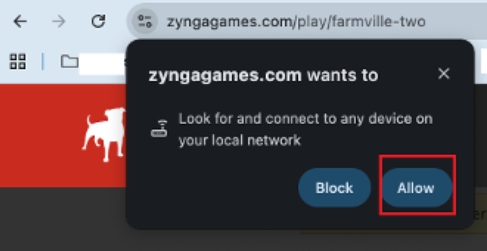
- Note: if you take too long to click the ‘Allow’ button, you need to refresh the page after clicking it.
- If you accidentally blocked or closed it, you need to manually grant the permission in Settings on your browser.
- Chrome → Settings → Privacy and Security → Site Settings → Local network access
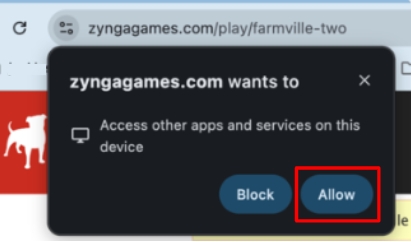
- Grant permission to access other apps and services on your device.
- When you load Farmville 2 on Zyngagames, a prompt will appear asking you to grant permission to access other apps and services on your device.
- Click the ‘Allow’ button, as shown in the screenshot below:
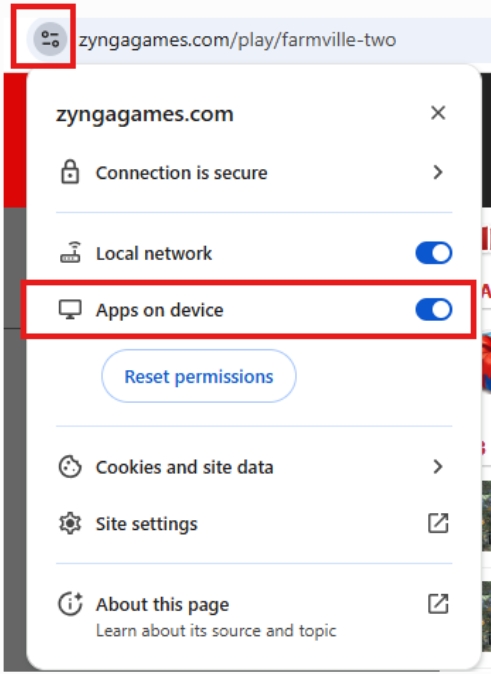
- If you accidentally blocked or closed it, you need to manually grant the permission on the “View Site Information” icon by toggling the “Apps on device” button, as shown in the screenshot below:
Thank you for your understanding and cooperation.